
Your Juwa 777 app is not loading, crashing, or running badly and you want it fixed right now.
Find your specific problem below. Every fix is numbered and ready to apply immediately.
If your issue is a login failure rather than a loading or performance problem — visit our Juwa 777 Login and Help Center for account-specific fixes.
Know How To Fix Juwa777 Login Issue
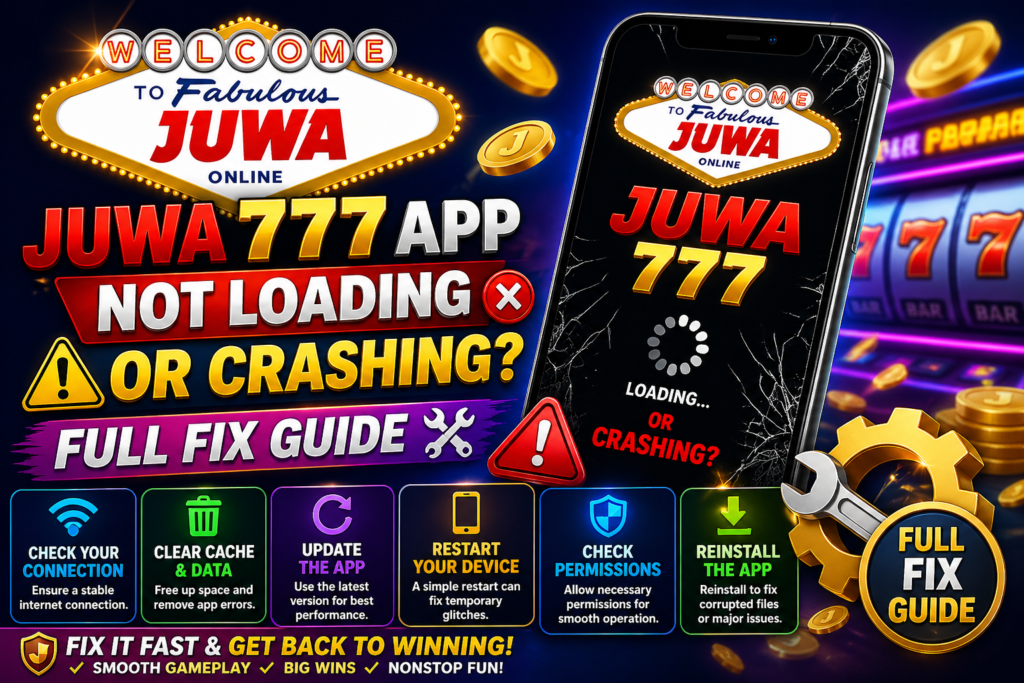
Quick Takeaway
- App crashes on launch — clear cache first, then check available storage
- Stuck on loading screen — check your internet connection, then clear cache
- Games not loading — refresh the page or restart the app
- Slow performance — close background apps and switch to Wi-Fi
- Browser not loading — clear browser cache and update to latest version
- If nothing works — live chat at juwaquest.com resolves most issues in under 5 minutes
App Crashes Immediately on Launch
The app opens and closes immediately, or crashes within the first few seconds.
Fix
1 — Force close the app completely. On Android swipe it away from recent apps. On iOS swipe up from the app switcher. Reopen.
2 — Go to Settings, Apps, JuwaQuest and tap Clear Cache. Corrupted cache is the most common cause of immediate crashes.
3 — Check that you have at least 200MB of free storage. Go to Settings, Storage to verify. Delete unused apps or files if needed.
4 — Check that you are running the latest version of the JuwaQuest app. An outdated version may be incompatible with current platform updates.
5 — If the crash continues, uninstall the app completely, re-download the APK directly from juwaquest.com, and reinstall fresh.
Note: Always download the APK from juwaquest.com only. Third party APK files are a common source of app instability and security risk.
Platform Stuck on Loading Screen
The app or browser opens but the platform never finishes loading. The loading screen spins indefinitely.
Fix
1 — Check your internet connection first. Switch from mobile data to Wi-Fi if possible. A dropped or unstable connection is the most common cause of infinite loading screens.
2 — Close the app or browser tab completely and reopen. A simple restart resolves the majority of stuck loading screens.
3 — Clear the app cache — Settings, Apps, JuwaQuest, Clear Cache — then reopen.
4 — Restart your device completely. A full device restart clears memory issues that cause loading failures.
5 — If the platform still does not load after a device restart, contact our support team through live chat at juwaquest.com. Server-side issues are rare but our team can confirm them immediately.
Games Not Loading Inside the Platform
The platform loads and your dashboard is accessible but individual games will not open or freeze on the game loading screen.
Fix
1 — Refresh the page or close and reopen the app. Individual game loading failures are frequently resolved by a simple refresh.
2 — Check your connection speed. Game assets require more bandwidth than the dashboard. Switch to Wi-Fi if you are on mobile data.
3 — Try a different game to determine whether the issue is platform-wide or specific to one title. If other games load normally the issue is isolated to that specific title.
4 — Clear cache and reopen the platform. Go to Settings, Apps, JuwaQuest, Clear Cache on the app. On browser clear cache through your browser settings.
5 — If a specific game consistently fails to load, contact support through live chat with the game title and your device model. Our team investigates every reported game issue.
Slow or Laggy Performance
The platform loads but gameplay is choppy, slow, or unresponsive. Fish table targeting feels delayed. Slots animations are stuttering.
Fix
1 — Close all background apps on your device before opening JuwaQuest. Background apps compete for RAM and processing power directly.
2 — Switch to Wi-Fi if you are on mobile data. Fish table games and visually rich slots require a stable connection for smooth performance.
3 — Check that your device battery is above 20 percent. Low battery mode throttles processor performance on most Android and iOS devices.
4 — Clear the app or browser cache. Accumulated cache data slows load times and can affect in-game performance over time.
5 — If your device is running Android 5.0 or an older iOS version, close every other app completely before your JuwaQuest session. Older devices need maximum available resources for smooth gameplay.
Pro Tip: Browser play at juwaquest.com often performs better than the app on older devices because it does not compete with stored app data. If performance issues persist on the app — try browser play as an alternative.
Browser Not Loading on Android
You are trying to access JuwaQuest through Chrome on Android and the platform is not loading or displaying incorrectly.
Fix
1 — Make sure you are using Chrome on Android. Other browsers occasionally have compatibility issues with JuwaQuest.
2 — Clear Chrome’s cache. Go to Chrome Settings, Privacy, Clear Browsing Data. Select Cached Images and Files and tap Clear Data.
3 — Make sure Chrome is updated to its latest version. Open the Play Store, search Chrome, and update if available.
4 — Disable any browser extensions or data saver settings that may be interfering with how the platform loads.
5 — If Chrome continues to fail, try Firefox or Edge as a temporary alternative to confirm whether the issue is Chrome-specific.
Know How To Download Juwa777 APK in Android
Browser Not Loading on iOS
You are trying to access JuwaQuest through Safari on iPhone or iPad and the platform is not loading.
Fix
1 — Clear Safari’s cache. Go to Settings, Safari, Clear History and Website Data. Tap Confirm.
2 — Make sure your iOS is updated to the latest version. Go to Settings, General, Software Update.
3 — Disable Safari extensions if you have any installed. Extensions occasionally block modern web platforms from loading correctly.
4 — Try opening juwaquest.com in Chrome for iOS as an alternative to confirm whether the issue is Safari-specific.
5 — If the platform loads on Chrome but not Safari, the issue is a Safari cache or settings problem. A full Safari reset through Settings, Safari, Clear History and Website Data almost always resolves it.
Black Screen on Launch
The app opens to a completely black screen with no content visible.
Fix
1 — Wait 10 seconds. Black screens on launch are occasionally caused by slow asset loading on the first open after an update. The screen sometimes resolves itself within a few seconds.
2 — Force close and reopen the app immediately.
3 — Clear the app cache — Settings, Apps, JuwaQuest, Clear Cache — then reopen.
4 — Uninstall the app, re-download the latest APK from juwaquest.com/download, and reinstall. Black screens after updates are almost always resolved by a clean reinstall of the latest version.
Still Not Working After Everything
If you have worked through every fix above and the platform is still not loading or performing correctly — contact our support team directly.
Live chat at juwaquest.com — fastest option. Response typically under 5 minutes. Our team can diagnose device-specific and account-specific issues in real time.
Contact form at juwaquest.com/contact — include your device model, operating system version, browser or app version, and a description of exactly what happens when the platform fails to load.
Alternatively — if the app continues to cause issues on your device, browser play at juwaquest.com gives you the full platform instantly with zero installation required. Visit our Play Juwa Online page for the complete browser access guide on every device.
[Contact JuwaQuest Support Now]
FAQs
Why does the Juwa 777 app keep crashing on my Android phone?
The most common causes are corrupted cache data, insufficient storage space, or an outdated app version. Clear the app cache through Settings, Apps, JuwaQuest, Clear Cache. Check that you have at least 200MB of free storage. If the crash continues, uninstall and reinstall the latest APK from juwaquest.com.
Why is JuwaQuest loading slowly on my phone?
Slow loading is almost always caused by background apps consuming RAM, a weak mobile data connection, or low battery mode throttling your processor. Close all background apps, switch to Wi-Fi, and make sure your battery is above 20 percent before starting your session.
Does clearing the cache delete my JuwaQuest account or coins?
No. Clearing the app or browser cache only removes temporary stored files. Your account, coin balance, loyalty points, and game history are all stored on the platform — not on your device. Clearing cache has no effect on your account data whatsoever.
Can I play JuwaQuest if the app is not working on my device?
Yes. If the app is causing persistent issues, browser play at juwaquest.com gives you the complete platform instantly with no app required. Open Chrome on Android or Safari on iOS, navigate to juwaquest.com, and every game and bonus is available immediately.
How do I know if JuwaQuest is experiencing a server issue?
Contact our support team through live chat at juwaquest.com. Our team can confirm server status immediately and provide an estimated resolution time if a platform-wide issue is affecting loading performance.
Back to Playing
Most loading and performance issues on JuwaQuest are resolved by clearing cache, checking your connection, or reinstalling the app.
If nothing in this guide resolves your issue — our support team is available 24 hours a day, 7 days a week through live chat at juwaquest.com.
[Play Juwa 777 Now — Browser Play, No Download Needed]
JuwaQuest is a social casino platform. All gameplay uses virtual coins for entertainment purposes only. Players must be 18 years of age or older. Play responsibly.